Cleaning Up Inactive AD Accounts with PowerShell and Python
PowerShell gets the accounts out of AD. Python cleans up the spreadsheet and separates them so you can work out which ones need attention first.

This project is basically two scripts that work together. The first uses PowerShell to query Active Directory and export the results to Excel. The second uses Python to clean up that spreadsheet and split the accounts into groups, so you can decide which ones to deal with first.
I wanted to make the report easier to work with. If you have a list of accounts that haven’t been used for a while, you still need to know what those accounts are for. Does the person still work there? Is this an admin account? Does an application depend on it?
Putting all of those accounts in one list leaves you with a lot of sorting to do before you can answer any of that. That’s the part I wanted the scripts to take care of.
You can get the scripts here on GitHub.
The screenshots use made-up data. None of the names or numbers come from an employer’s report.
Getting the data out of AD
The PowerShell script is called Export-InactiveADUsers.ps1. Provided you have the right permissions, it queries enabled user accounts and creates an Excel report like the one you’d get from MaxPowerSoft.
You get the account names, where they sit in AD, when they were created, their expiry and password dates, and the logon information. The headings and formatting are already there, so you’re not starting with a spreadsheet that needs tidying up just to read it.
You’ll need Windows PowerShell and the RSAT ActiveDirectory module. You don’t need Excel installed or the ImportExcel module to create the file.
Here’s an example for a 90-day review:
.\Export-InactiveADUsers.ps1 -Days 90 `
    -InactivityBasis LastLogon -UseTimestampSafetyNet `
    -DayCalculation ElapsedDays `
    -OutputPath 'C:\Reports\Inactive90-Review.xlsx'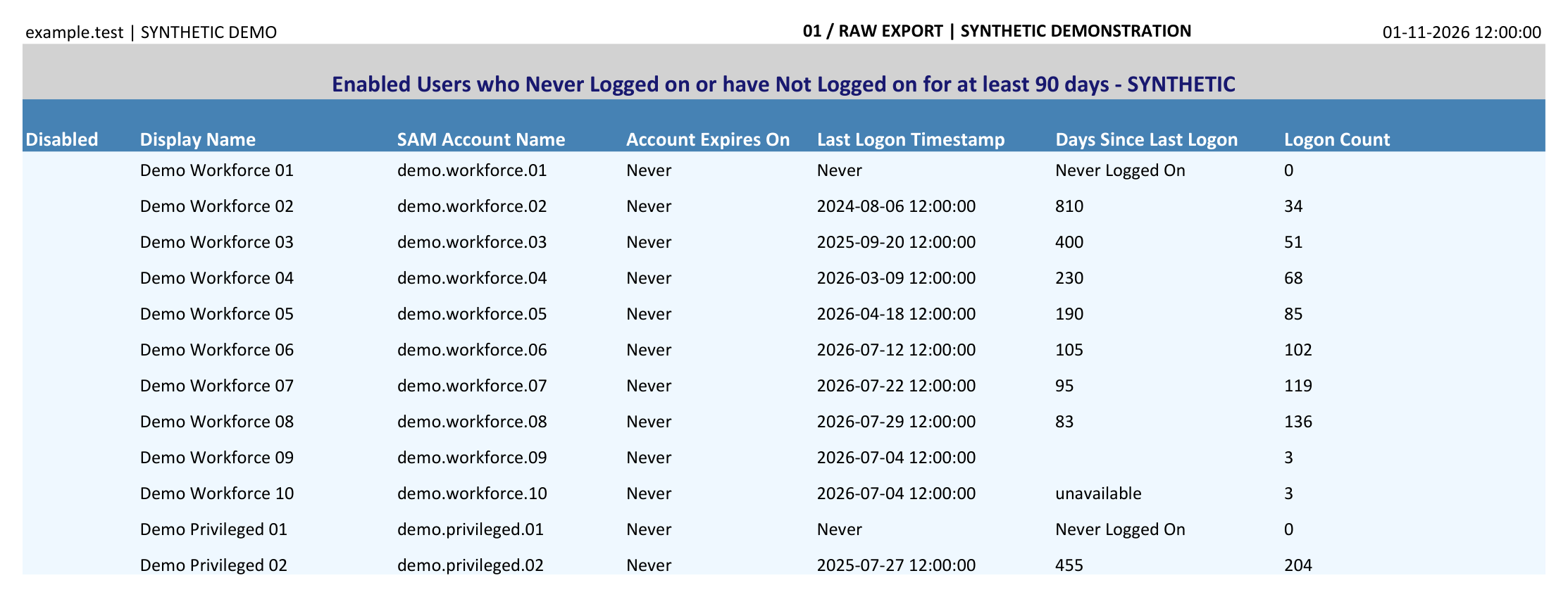
This is the starting report. I’ve hidden a few columns here so it’s easier to read.
One thing to watch is that AD has more than one last-logon field. Each domain controller keeps its own lastLogon value, so you need to check them all and take the latest one.[1] lastLogonTimestamp is replicated, but it can be behind the most recent activity.[2]
The command above uses the latest recorded lastLogon and checks for a newer lastLogonTimestamp as well. Without those extra options, the script selects accounts using lastLogonTimestamp and shows their age using lastLogon, to match the original report’s behavior. That can give you a row in a 90-day report whose displayed age is actually less than 90 days.
If the script can’t read a required domain controller, it stops rather than giving you an incomplete report. It also saves a small audit file showing what it queried and which settings it used.
Then Python sorts the spreadsheet
Once you have the export, you pass it to the Python script:
python ad_account_hygiene_report.py \
    /secure/Inactive90.xlsx \
    /secure/Inactive90-Review.xlsx \
    --config private_rules.json
It cleans up the values and puts the accounts into separate sheets:
- Workforce Accounts: employee accounts to check against HR records or with a manager.
- Privileged Accounts: accounts picked up by your configured AD paths, so you can look more closely at their access.
- Service Accounts: accounts that appear to be used by applications, services or devices.
- Other Accounts: anything that doesn’t fit the rules you’ve set up.
The rules use account names and where the accounts sit in AD. You can change those rules to suit your setup. For example, a service account can still be picked up even if someone created it in the same OU as employee accounts.
Your own OU paths and naming rules go in private_rules.json. sample_config.json on GitHub contains generic examples; your internal details stay out of the repository.
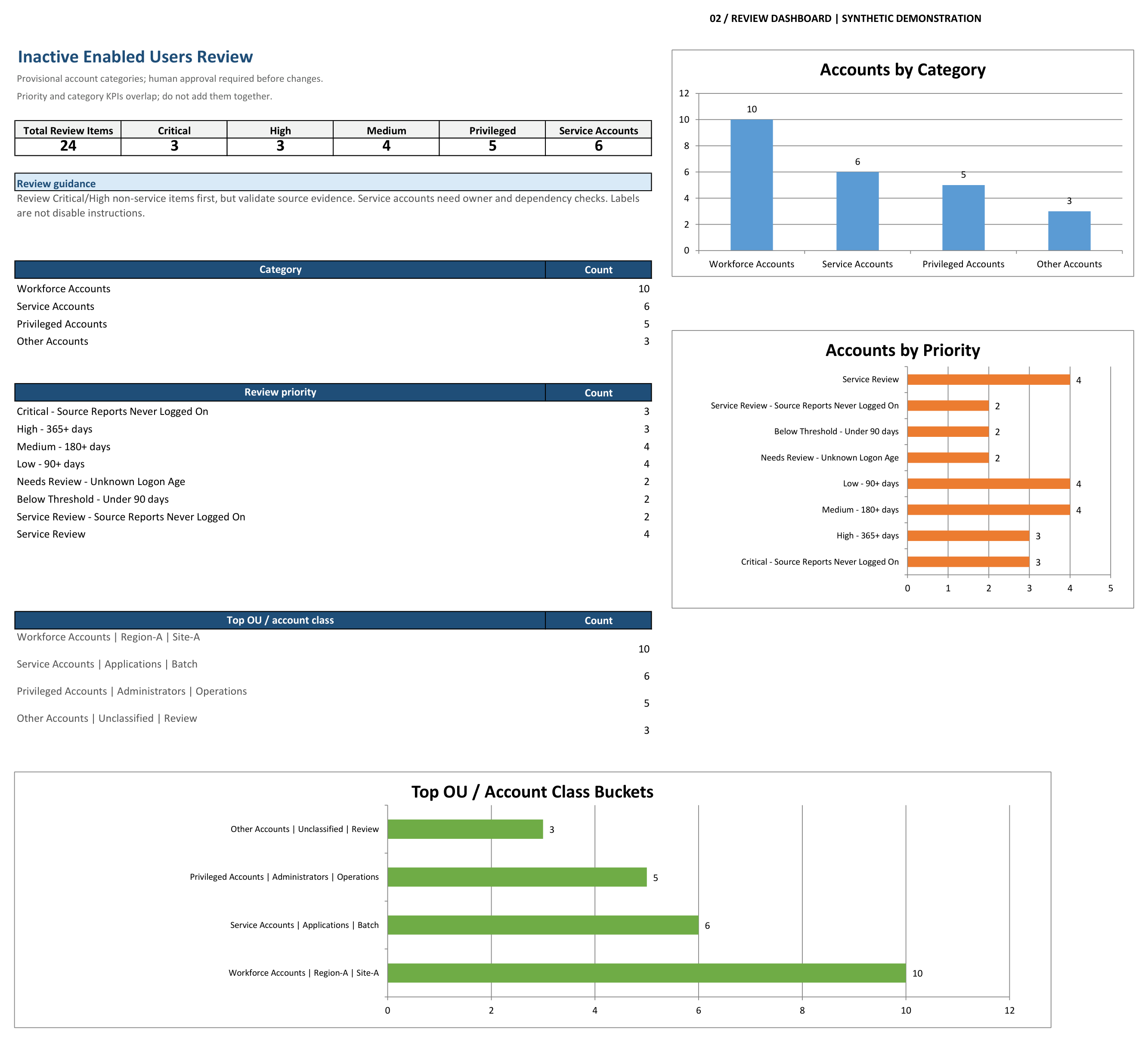
The dashboard gives you a quick summary. The individual sheets give you the accounts to go through.
Which accounts do you look at first?
For accounts outside the service-account group, the script uses these priorities:
- Critical: the report says
NeverorNever Logged On. - High: 365 days or more since the last logon.
- Medium: 180–364 days.
- Low: 90–179 days.
If an account shows more recent activity, it gets a separate label. If the value is missing or doesn’t make sense, the script flags it for a closer look. It doesn’t guess.
For accounts marked Never, check when they were created. A new starter’s account might simply be waiting to be used. AD also uses a zero lastLogon value to mean unknown.[1]
The logon count is there as extra information. Each DC keeps its own count, the counters have a limit, and counts from retired DCs aren’t included.[3]
Service accounts need a different approach
I kept service accounts separate because you don’t want to treat them like old employee accounts. Before disabling one, you need to know what’s using it. It could be running a service, a scheduled task or an integration that someone still relies on.
These accounts get a Service Review label. The sheet also shows why the script put each account in that group, so you can see whether the match makes sense.
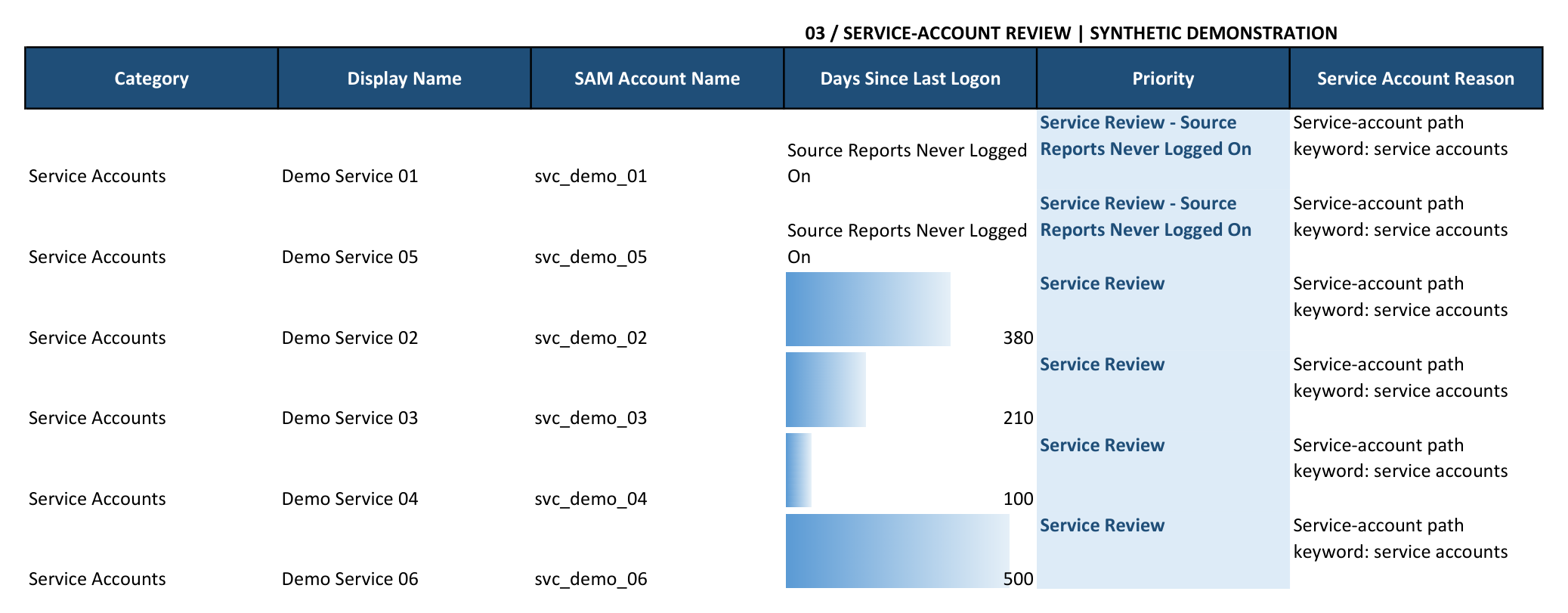
The service accounts are on their own sheet instead of mixed in with employee accounts.
From there, you can find the owner and check what depends on the account. The same goes for the privileged-account sheet: check the actual permissions and group memberships, rather than assuming the OU tells you everything.
Neither script disables or deletes accounts. They get the information together and sort it out. You still make the changes through your normal approval process, with a way to undo them if something needs the account after all.
That’s what I wanted from this project: take the AD export, do the repetitive spreadsheet work, and give you a list you can actually work through. You can spend your time checking the accounts instead of moving rows around in Excel.
The GitHub README has the setup instructions and a sample-data generator if you want to try it yourself.
Sources
[1] https://learn.microsoft.com/en-us/windows/win32/adschema/a-lastlogon [2] https://learn.microsoft.com/en-us/windows/win32/adschema/a-lastlogontimestamp [3] https://learn.microsoft.com/en-us/windows/win32/adschema/a-logoncount